How to free up storage on iPhone
· By the Yeld team
1. See what takes the space
Go to Settings → General → iPhone Storage and wait a moment while it counts. The bar at the top shows each category; below it, apps are sorted by size, and iOS lists recommendations such as offloading unused apps or reviewing large attachments. If Photos is at the top, read on: that is where most of the space comes back.
2. Videos: the biggest win
A minute of video takes far more room than a photo. Apple puts a minute of 1080p video from the iPhone camera at roughly 70–105 MB, and 4K is several times that. A few long clips can take more space than thousands of photos.
You can delete the ones you don’t need, but the ones you keep can be made smaller instead. iOS has no button for that in Photos; see how to compress videos on iPhone for the built-in route and the faster one.
To record smaller videos from now on, go to Settings → Camera → Record Video and pick 1080p instead of 4K, and keep Settings → Camera → Formats on High Efficiency.
3. Photos: screenshots, duplicates, Live Photos
- Screenshots. Photos keeps them in Collections → Media Types → Screenshots. Most are useless a week later; select the old ones and delete them.
- Private screenshots. Card numbers, passwords, recovery phrases and ID documents often sit in screenshots for years. Yeld’s free Privacy check finds them on your iPhone, so you can delete or hide them.
- Duplicates. On iOS 16 and later, Photos collects copies in Collections → Utilities → Duplicates. Tap Merge to keep the best version.
- Live Photos. Each one stores a few seconds of video next to the photo. Turning Live off on a photo hides the motion but keeps the video on your iPhone; the space only comes back when the photo is saved as a still and the Live original is deleted.
4. Empty Recently Deleted
Photos you delete go to Collections → Utilities → Recently Deleted and stay there for 30 days, still taking space. Open it, unlock it with Face ID, tap Select, then the ⋯ button and Delete All. This is the step most people miss when their storage doesn’t go down after a cleanup. (On iOS 17, these albums are under the Albums tab.)
5. Apps, messages and the rest
- Offload apps you don’t use. In iPhone Storage, tap an app, then Offload App: the app goes, its documents and data stay, and it comes back as it was when you reinstall it.
- Old messages. In the Messages settings, set Keep Messages to 1 Year instead of Forever. Photos and videos in old chats can take gigabytes.
- Downloads. Downloaded music, podcasts and streaming shows can be removed from their apps and downloaded again later.
- iCloud Photos. With Optimize iPhone Storage on, full-size photos and videos live in iCloud and your iPhone keeps smaller versions. This needs enough iCloud storage for your whole library.
Built-in tools or an app?
Everything above can be done with what comes with iOS, one album at a time. Yeld puts the photo and video part in one place and adds what iOS can’t do: making the videos you keep smaller and converting Live Photos in bulk.
| Built into iOS | Yeld | |
|---|---|---|
| Where the space goes | iPhone Storage: one bar for all of Photos | Videos, photos, screenshots and Live Photos, each with its size |
| Screenshots with cards or passwords | Search Photos for the words yourself | Privacy check finds them, free |
| Videos you keep | No way to make them smaller in Photos | Compressed copies, about 46 MB per minute at the default level |
| Duplicates | Duplicates album, iOS 16 and later | Near-identical shots side by side, the best one picked |
| Going through the camera roll | Select and delete in Photos | Swipe left to delete, right to keep |
| Safety | Recently Deleted for 30 days | Yeld Trash until you empty it, then Recently Deleted |
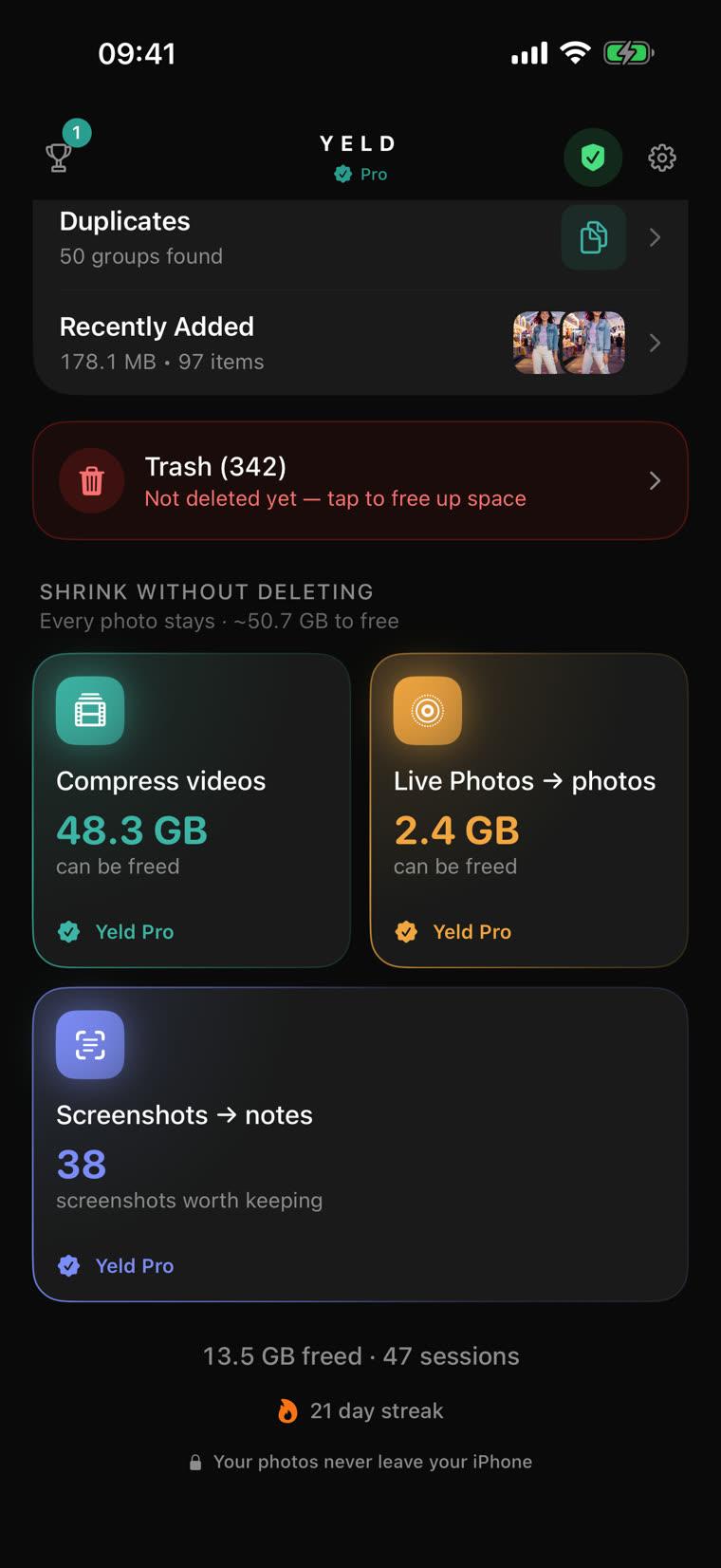
If you’d rather not delete anything at all, see how to free up space without deleting photos.
Why does my iPhone say storage is full when it isn’t?
The iPhone Storage screen takes a while to recount after a big cleanup, and space from deleted photos only comes back once Recently Deleted is emptied. Give it a few minutes, empty Recently Deleted and check again. If the message is about iCloud storage, that is a different space: it fills with iCloud Photos, backups and files, and cleaning the iPhone won’t change it unless those photos are deleted too.
Free up your iPhone with Yeld
Free to use · No account · Everything stays on your iPhone