How to free up space on iPhone without deleting photos
· By the Yeld team
1. Compress the videos you keep
Videos are usually most of the space Photos takes. A copy re-encoded at 1080p looks the same on a phone screen and is several times smaller than a 4K original. iOS can do it one video at a time through iMovie; an app can do the whole library and keep each video’s date and place. Both ways are in how to compress videos on iPhone.
2. Turn Live Photos into regular photos
A Live Photo is a photo plus about three seconds of video. Turning Live off in the editor only hides the motion: the video stays on your iPhone. To get the space back, save a still copy and delete the Live original: open Collections → Media Types → Live Photos, select the photos, tap ⋯, then Duplicate and Duplicate as Still Photo. The stills appear next to the originals; then delete the Live ones. You keep the picture and lose only the motion.
Yeld does the same for many Live Photos at once, and lets you pick the best frame instead of the one the camera chose.
3. Convert ProRAW photos to HEIF
On Pro iPhones with ProRAW turned on, each shot is a RAW file of roughly 25–75 MB, kept for heavy editing. If you don’t edit them, a full-resolution HEIF of the same photo is several MB. Photos has no conversion button; it takes a Shortcut or an app. If you shoot ProRAW by accident, turn it off in Settings → Camera → Formats.
4. Let iCloud keep the originals
With iCloud Photos and Optimize iPhone Storage on, full-size photos and videos live in iCloud and your iPhone keeps smaller versions, downloading the original when you open it. Nothing is deleted, but you need iCloud storage for your whole library, and photos you open offline may not load in full.
5. Clear space outside Photos
- Offload unused apps in Settings → General → iPhone Storage: the app goes, its data stays.
- Keep messages for 1 year instead of Forever in the Messages settings.
- Remove downloads of music, podcasts and shows you’ve already played.
Doing it all with Yeld
Yeld shows how much space can come back without deleting anything, then does the photo part in one place, on your iPhone.
| Built into iOS | Yeld | |
|---|---|---|
| Videos | iMovie, one at a time, new date | Whole library; date, place and albums kept |
| Live Photos | Duplicate as Still Photo, then delete the Live originals yourself | One run: stills saved, originals to Yeld Trash; edits and key frame kept |
| ProRAW | No conversion in Photos | Full-resolution HEIF, edits kept |
| The originals | Delete them yourself | Wait in Yeld Trash until you empty it |
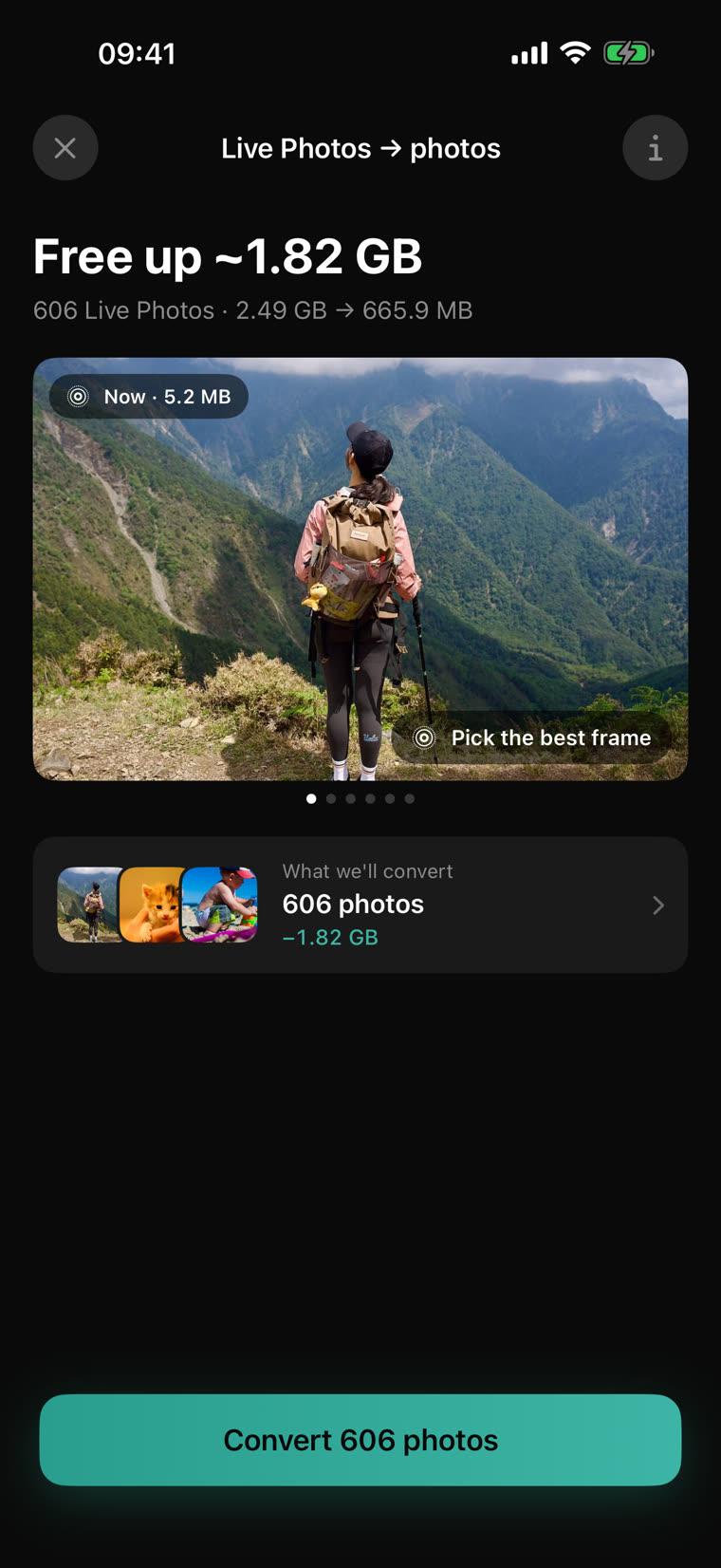
Compression, Live Photos and ProRAW are part of Yeld Pro, a one-time purchase, and each can be tried free first. Swiping through your camera roll, duplicates and Yeld Trash are free.
Does this lower the quality?
Compressed videos and HEIF photos look the same on a phone screen; the difference shows up only when you zoom far in, edit heavily or play a 4K video on a big TV. A still photo from a Live Photo loses only the motion. If a file matters for editing, keep its original. For everything else that fills an iPhone, see how to free up storage on iPhone.
Free up your iPhone with Yeld
Free to use · No account · Everything stays on your iPhone