How to compress videos on iPhone
· By the Yeld team
Why iPhone videos are so big
The camera records at a high bitrate so the video holds up when edited or watched on a big screen. Apple puts a minute of 1080p at roughly 70–105 MB and 720p at 19–27 MB; 4K, and especially 4K at 60 fps, takes several times more. On a phone screen, a 1080p copy at a lower bitrate looks the same. That gap is the space you get back.
The built-in way: iMovie
iMovie is free from Apple and is what Apple suggests for making a video smaller.
- Open iMovie, tap Start New Project, then Movie.
- Tap Media, then Video, pick the video and tap Create Movie, then Done.
- Tap the Share button, then Save or Share Video. Tap Options, choose 720, 540 or 360 (1080p is the default), tap Done, then Save Video.
- Check the new copy in Photos, then delete the original.
- Empty Collections → Utilities → Recently Deleted (Albums on iOS 17), or the original keeps its space for 30 days.
The catch: one video at a time, the copy shows up under today’s date instead of the day you filmed it, and the original’s location and albums don’t carry over.
Record smaller videos from now on
In Settings → Camera → Record Video, choose 1080p at 30 fps instead of 4K, and keep Settings → Camera → Formats on High Efficiency. This changes new videos only; the ones you already have stay the same size.
Compress the whole library with Yeld
Yeld finds every video that would get noticeably smaller, shows how much space each one gives back, and compresses them in one run on your iPhone. Nothing is uploaded.
- On Yeld’s home screen, under Shrink without deleting, tap Compress videos.
- Check the videos and the total you’ll get back, then tap the Compress button at the bottom.
- Yeld saves each copy next to its original, with the same date, location, favorite and albums. On iOS 26 and later the batch keeps going when you leave the app; on earlier versions it pauses and continues when you come back.
- The originals go to Yeld Trash. Look at a few copies; when you’re happy, empty Yeld Trash and confirm. The space comes back once Recently Deleted is emptied too.
For a single video, tap Compress on its card while you swipe. Yeld shows the same frame of that video now and after compression: drag the line to compare, pinch to zoom, then decide.
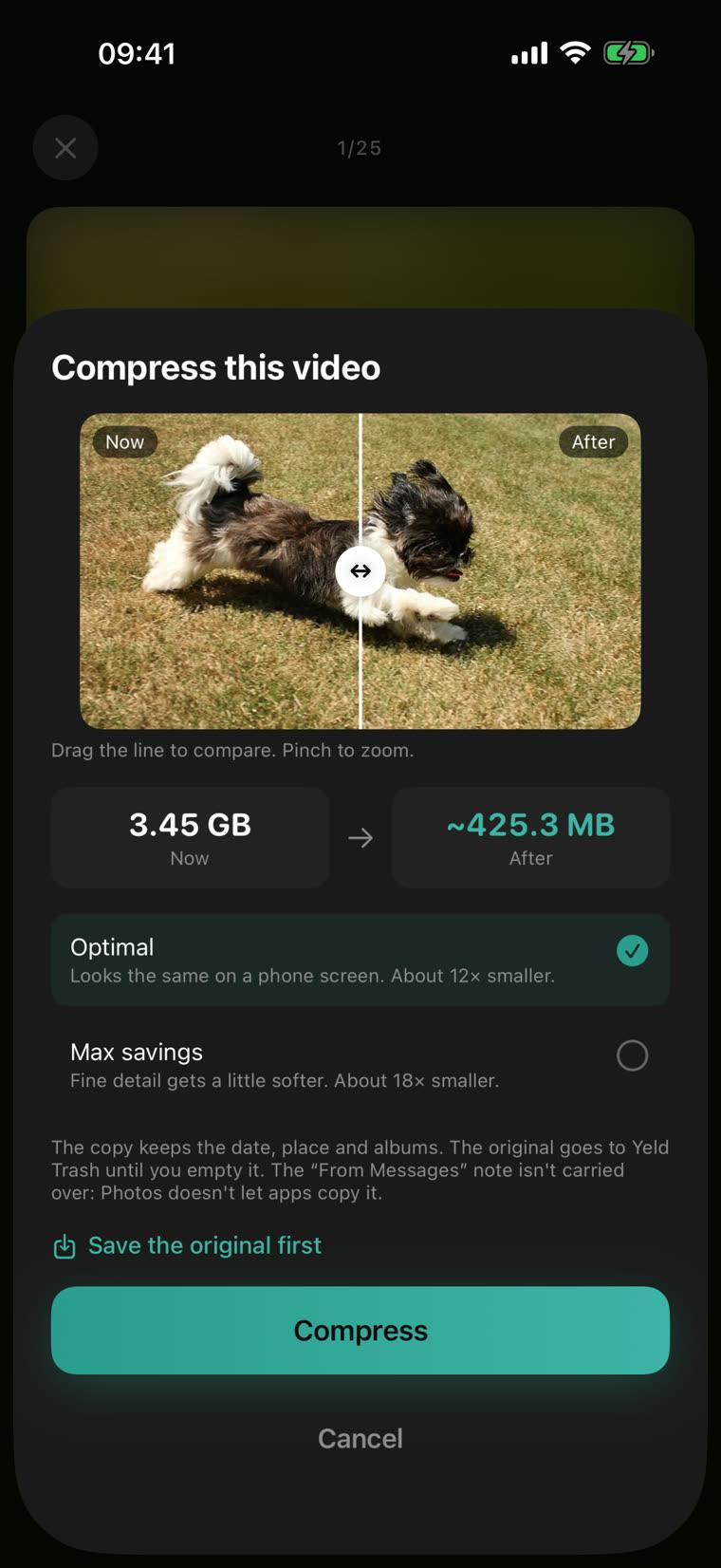
The copies are HEVC at up to 1080p and 30 fps, at 6 Mbit/s (about 46 MB a minute) by default, or 4 Mbit/s if you choose Max savings. HDR video stays HDR, and slow-motion keeps its frame rate. Videos that are already small are left alone, and videos stored only in iCloud join once they’re on your iPhone: Yeld downloads them on Wi-Fi, or over mobile data if you allow it in its settings.
iMovie or Yeld?
| Built into iOS | Yeld | |
|---|---|---|
| How many at once | One video | The whole library in one run |
| Date and place | Today’s date, no location | Kept, along with favorites and albums |
| See the savings first | No | Per video and in total |
| Check the quality first | Watch the copy after exporting | The same frame now and after, side by side |
| The original | Delete it yourself | Waits in Yeld Trash until you empty it |
| Price | Free | Yeld Pro, a one-time purchase; can be tried free first |
Will the video look worse?
On a phone screen, 1080p at Yeld’s default level looks the same as the original. On a big TV you may see finer detail in a 4K original, which is why the originals wait in Yeld Trash until you decide. If a video matters for editing later, keep the original.
Videos are usually the largest part of a full iPhone. For the rest, see how to free up storage on iPhone and how to free up space without deleting photos.
Free up your iPhone with Yeld
Free to use · No account · Everything stays on your iPhone